
Support · Board rescue tool
PixelPop won't wake up? Give it some CPR.
PixelPop CPR is a free Mac app that brings a stuck PixelPop back to life over its USB-C cable. It puts fresh software on the board and helps it back onto your Wi-Fi. No buttons to press on the board and nothing to set up.
Free · for Mac (Apple silicon and Intel)
You'll need the USB-C cable that came with your PixelPop.
Troubleshooting
Common questions, quick fixes.
Tap a question to see the answer. Still stuck? Email support@hellopixelpop.com.
My display is upside down or mirrored
PixelPop works out which way is up when it starts, so these fixes are all about helping it see the right way up.
Try this first
- Unplug the power cable.
- Stand the board on its long edge, the way you want it to sit, so it is held steady and level.
- Plug the power back in and leave it still until the picture appears.
Still upside down?
Turn the board 180 degrees on the shelf (so the cable comes out the other side), then unplug and plug it back in.
Fix it from your phone or computer Coming with the next update
The next PixelPop software update adds a page for exactly this. Once your board has the update, open pixelpop.local/rotate in any browser on the same Wi-Fi and tap one of four buttons:
- Normal
- Turn upside down
- Mirror top to bottom
- Mirror left to right
The change happens straight away and the board remembers it. This page is not on boards yet, so use the steps above for now. We'll update this answer when it ships.
I can't get PixelPop onto my Wi-Fi
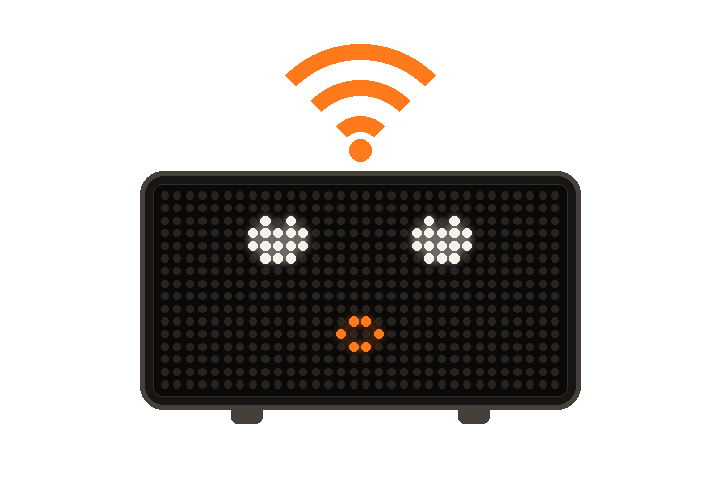
PixelPop needs a 2.4 GHz network and the exact Wi-Fi name and password, capitals and spaces included. Many routers combine 2.4 and 5 GHz under one name, and some hide the 2.4 GHz band.
Our Wi-Fi help page walks through setting this up on any router, mesh system or provider box. If the board is stuck and won't start at all, use the free PixelPop CPR app above.
The app can't find my board
- Make sure the board is powered on and showing a picture.
- Your phone or Mac must be on the same Wi-Fi network as the board, not a guest network or a different band.
- Turn Wi-Fi off and on again on your phone, then reopen the app.
- Unplug the board for 10 seconds and plug it back in.
- If it still doesn't appear, check the Wi-Fi settings with the Wi-Fi help page. A board that never joined your network can't be found.
How it works
Three steps, about a minute.
-
Open PixelPop-CPR.dmg from your Downloads folder.
A window opens with the PixelPop CPR app inside.
-
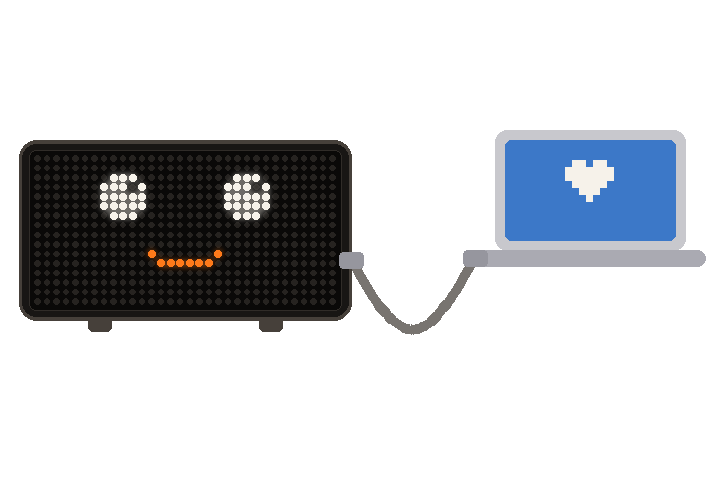
Plug your PixelPop into the Mac, then double-click PixelPop CPR.
Use the USB-C cable that came with the board. Want to keep the app? Drag it to Applications first. If your Mac asks to allow the accessory to connect, click Allow.
-
Click Start, keep it plugged in, and type your Wi-Fi.
When the board smiles and the app says "All better!", you're done. You can unplug it.
Good to know
If something looks off.
The app can't find the board
Plug the cable straight into the Mac rather than a hub, and try another USB-C cable if you have one. Some cables only charge and can't carry data.
Type the Wi-Fi name exactly
Use the name just as it shows on your phone or Mac, capitals and spaces included. PixelPop needs a 2.4 GHz network. If your router hides it, the Wi-Fi help page shows how to turn it on.
Don't unplug in the middle
The app shows a heartbeat while it works. If the cable comes out by accident, plug it back in and click Start again.
Your settings stay put
PixelPop CPR only replaces the board's software. It keeps a backup copy of the old one on your Mac, just in case.